
Knowledge center
How to Upload and Process Your 3D Model
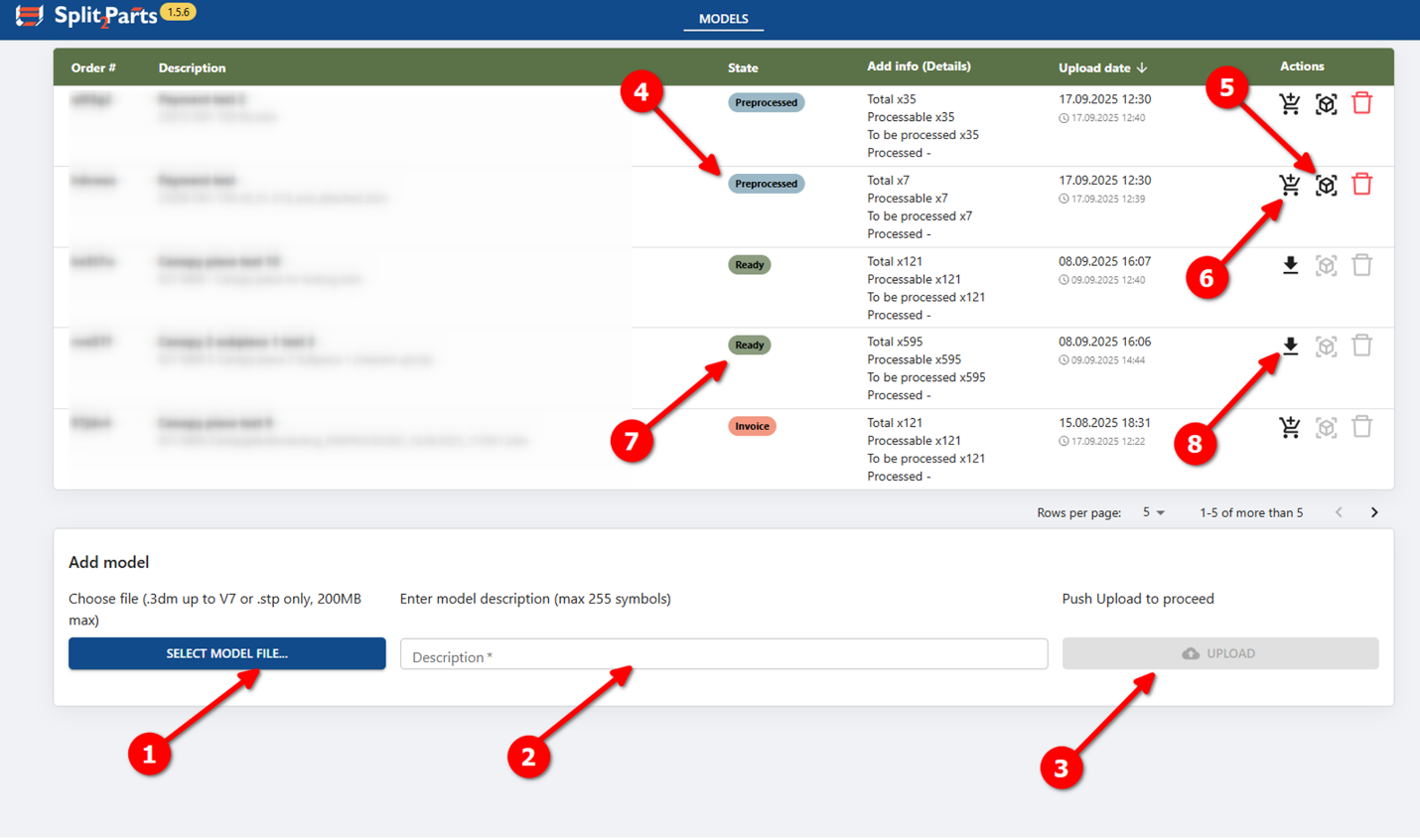
- Prepare your file
Select a file with your 3D model. The model must meet these requirements:- Supported formats: .step / .stp or .3dm (Rhino 7)
- Maximum file size: 60 MB
- Maximum number of objects: 200
- Public alpha limitation: only plate parts are supported
(flat or bent plates, no machining such as chamfers, bevels, blind holes) - Plate parts must be solid objects or closed polysurfaces
(other object types will be ignored) - Do not include profiles such as circular or rectangular tubes, flat bulbs - these may be detected as plates and processed incorrectly
- Add a description
Enter a short description of your model. - Upload the model
Click Upload.
After upload, the model automatically enters the Preprocessing stage, where it is checked and prepared.
During preprocessing:- If the model contains more than 200 objects, processing stops automatically
- All objects except solids and closed polysurfaces are removed
- Plate parts are detected, and their thickness is measured
- Wait for preprocessing
The model status will change to Preprocessed.
This may take from 5 minutes up to several hours, depending on model size and complexity. - Review the model (optional)
Once preprocessing is complete:- A 3D model view becomes available in your browser
- You can inspect the model and adjust part attributes if needed
(this step is optional)
- Purchase and start processing
When the model is ready:- Click Purchase
- Complete payment
(in public alpha, a fixed price applies)
- Wait for processing
Model processing can take 30 minutes up to 24 hours, depending on complexity.
When finished, the model status will change to Ready. - Download results
When the status is Ready:- The Purchase button is replaced by Download Contours
- Click it to download a ZIP package containing:
- .DXF contours, sorted by material and thickness
- .STP files for individual parts, also sorted by material and thickness
3D viewer window layout:
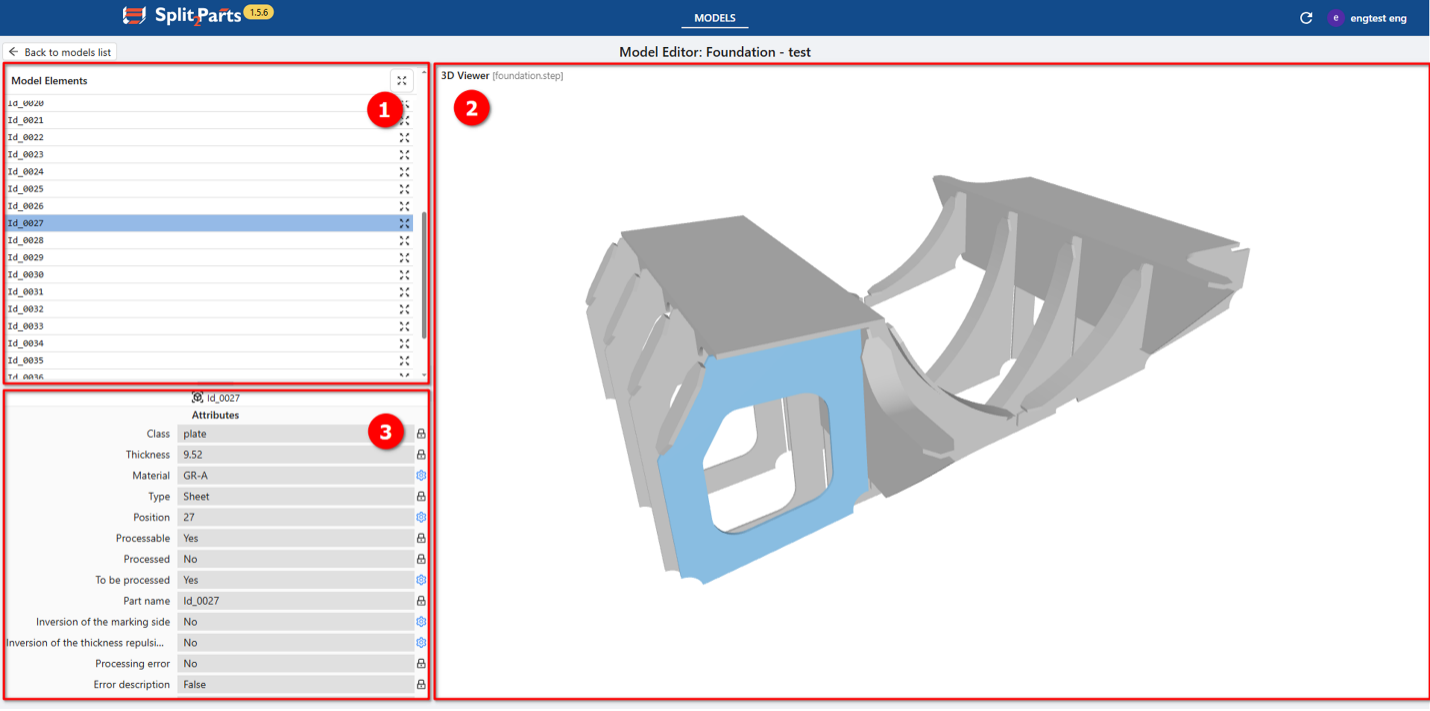
3D Viewer Layout
The viewer consists of three main areas:
- Model Elements List
- Shows all detected parts
- Click a part to:
- highlight it in the 3D view
- display its attributes
- 3D Viewer
- Displays the cleaned-up 3D model
(invalid objects such as lines or non-solids are removed) - You can rotate, zoom, and pan the model
- Clicking a part highlights it and shows its attributes
- Displays the cleaned-up 3D model
- Attributes Panel
Shows attributes of the selected part.- Editable attributes → marked with a blue gear icon
- Read-only attributes → marked with a grey lock icon
Part Attributes (Key Parameters)
- Class (read-only)
Part category (plate, profile, machined part, cast part, etc.) - Thickness (read-only)
Plate thickness (defined automatically during preprocessing) - Material (editable)
Default is GR-A, can be changed manually (text input) - Type (read-only)
Part type (sheet, L-profile, HP, tube, etc.) - Position (editable)
Position number shown near marking lines on connected parts - Processable (read-only)
Indicates whether the part can be processed - Processed (read-only)
Shows whether the part has already been processed
(always No in the 3D viewer) - To be processed (editable)
Controls whether the part will be processed (Yes/No) - Part name (read-only)
System-generated ID + original object name (if available) - Invert marking side (editable)
Use markings from another side of a plate
Note: in public alpha, contours are generated for both sides - Invert thickness repulsion side (editable)
Controls which side of the plate leaves marking lines
Note: in public alpha, mould side preview is not available
Current Limitations (Public Alpha):
Only plate parts are processed correctly.
A valid plate part must:
- be a solid or closed polysurface
- be flat or bent with straight edges (without chamfers, bevels)
- have no blind or stepped holes, other machining
- be symmetric relative to the neutral surface
- have side surfaces connected tangentially
Parts that do not meet these requirements may be processed incorrectly.